Desktop Fish
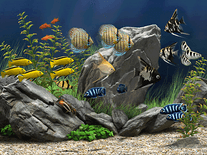
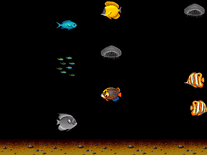
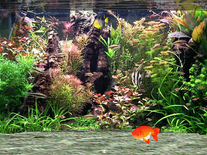
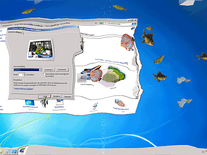
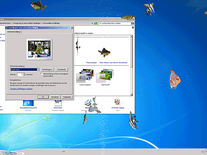
Transform your desktop into a virtual aquarium with this animated screensaver. The current state of your desktop is transformed by means of rippling effects, while various species of fish swim around the screen. A green-text menu will be displayed when the screensaver starts, showing a number of keyboard shortcuts that allow you to increase and decrease the number of bubbles and ripples, and to adjust the volume of sound effects.

 Free
Free  3 MB
3 MB  for Windows
  10,679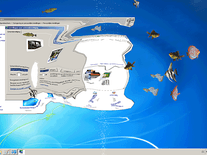
Message board
Is your question not listed? Post it on our message board »
| Subject | Replies | Last post |
| Как удалить? | 1 | 7 months ago |
Installation instructions
Microsoft Windows
- Double-click on the file you downloaded above the start the install program.
- To continue, click "Next". A very short license agreement will now be displayed. To install this screensaver, you are required to indicate that you accept these terms, before you can click "Next".
- You will now be asked to enter your name and the name of the company you work for. You can enter anything you like into these fields, but you cannot leave them empty. Click "Next" to proceed.
- There is no actual difference between the "Complete" and "Custom" setup type, so simple click "Next" again to continue, followed by "Install" to begin the installation process.
- The Desktop Fish screensaver has now been installed onto your computer. Click "Finish".
- You should now be able to find this screensaver in Windows's Screen Saver Settings panel, where, please note, it is called "FreeFishScr" rather than "Desktop Fish".
Anti-virus report for Desktop Fish
Our editors have reviewed all files and found them to be safe, but they are also checked automatically using many different virus scanners. We are happy to share the results.
| Virus scanner | desktopfish.exe |
|---|---|
| AVG | |
| Avast | |
| Avira | |
| BitDefender | |
| ClamAV | |
| ESET-NOD32 | |
| F-Secure | |
| Kaspersky | |
| Malwarebytes | |
| Microsoft | |
| Panda | |
| Symantec | |
| TrendMicro | |
| Webroot | |
| Last scanned | 1 week ago |
We have 1 file for "Desktop Fish"
- desktopfish.exe (Windows)
| File report #1 | |
|---|---|
| File name | desktopfish.exe |
| Target system | Microsoft Windows |
| File size | 3.00 MB (3,149,522 bytes) |
| File type | Portable Executable (EXE) |
| Anti-virus | |
| Detection ratio | 0/14 (0%) View report |
| Popularity | |
| Total downloads | 10,679 |
| Last downloaded | 1 hour ago |
| File verification | |
| MD5 | 1bc7fdd3be9b97990303cf0f660ecd84 |
| SHA1 | 63043bebe73804e8d810ecf9dc23186e1775793a |
| SHA256 | fdffbbfc878a80cb741b0d31272ba2f8a301ffedb40f61755dd1ef96f09ba545 |
User reviews (7)
I had to restart my computer in settings to get rid of it..


wont work on 1920x1080 pc, will also show black screen, but works either way
Looks just like the pictures. However - it is not made for larger or 16:9 monitors. It requires you to hit ESC to close it as well. Its settings are built in to the screensaver while its active, and it does have options on ripple/no ripple, bubbles/no bubbles etc, and some moderate screen resizing - but for my monitor (16:9 ~27 inch) could only get so far. It is also only for one screen.
If you have a smaller monitor, it could work very well. The fish models are cute. It's just very quirky.
bruh i had to use task mangager to end it
its so good i could stare at the fishes all day i love them
It has an error issue that microsoft intercepts...it will not play and forced me to send an error report before I could become unfrozen. Another thing is I like your others better and being able to choose where it downloads instead of this.
interesting...