Flag 3D
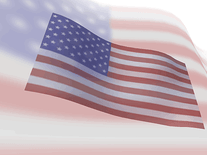
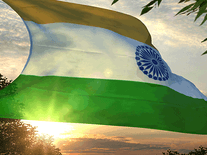
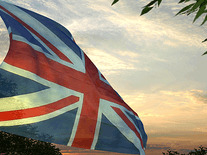
The flags of fifty countries are included in this animated screensaver, ranging from the United States and India to the Netherlands and Japan, along with those of the European Union and United Nations. The country flag you pick during installation or via the screensaver's settings will be shown high and proud amidst trees and a sunset.

 11.95 USD
  28.4 MB
  for Windows
  3,483
3,483
Message board
Do you have a question about this screensaver? Post it on our message board »
Installation instructions
Microsoft Windows
- Start the Flag 3D Screensaver Setup Wizard by double-clicking on the flag3d.exe file you downloaded.
- Click "Next" to continue, then click "Next" again unless you want to subscribe to the developer's monthly e-mail newsletter (if you do, tick the box and enter your e-mail address, then click "Next").
- Select the name of the country whose flag you want and click "Next" (you can change this later).
- Creating a desktop icon is optional. It allows you to quickly start the screensaver without waiting. If you do not want a desktop icon, untick the box, then click "Next".
- Indicate if you accept the license agreement, then click "Next" to proceed.
- Changing the destination location is optional, and usually not necessary. Click "Next".
- The same goes for the Start Menu folder. Simply click "Next" unless you want to change its name.
- Now click "Install" to copy the screensaver to your computer. This may take a few seconds.
- The 3Planesoft Screensaver Manager will automatically be opened. Here, you can click "Settings" to change to another country's flag, or click "Preview" to see what the screensaver will look like.
- "Flag 3D" is now your default screensaver. You can find it in the Screen Saver Settings panel.
Anti-virus report for Flag 3D
Our editors have reviewed all files and found them to be safe, but they are also checked automatically using many different virus scanners. We are happy to share the results.
| Virus scanner | flag.exe |
|---|---|
| AVG | |
| Avast | |
| Avira | |
| BitDefender | |
| ClamAV | |
| ESET-NOD32 | |
| F-Secure | |
| Kaspersky | |
| Malwarebytes | |
| Microsoft | |
| Panda | |
| Symantec | |
| TrendMicro | |
| Webroot | |
| Last scanned | 1 week ago |
We have 1 file for "Flag 3D"
- flag.exe (Windows)
| File report #1 | |
|---|---|
| File name | flag.exe |
| Target system | Microsoft Windows |
| File size | 28.40 MB (29,777,416 bytes) |
| File type | Portable Executable (EXE) |
| Anti-virus | |
| Detection ratio | 0/14 (0%) View report |
| Popularity | |
| Total downloads | 3,483 |
| Last downloaded | 1 day ago |
| File verification | |
| MD5 | 3918de3612f13bf113691c09f852de27 |
| SHA1 | 1a54299f9713a030abe86c686833f3ea07c040ec |
| SHA256 | 27cdb96c4b0ea69682f7e9bea5cd557d56b8b67d01b8ab41d6067580dad582ec |
User reviews (8)
Very American


the best
This is the best flag 3d screensaver ! But the ashok chakra in the indian flag isn't correct as it has dots instead of circle by the way you should download it !
Beautiful and gracefully made.
love it
I Love India
love
Wonderful, but useless, as not for Apple Mac