

Which version of Windows do I have?
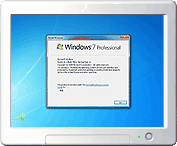 Before you download a screensaver, it is important to know which version of the Windows operating system you are using. After all, the screensaver you want to use may not be compatible with your version of Windows. It may also be helpful to know how old your version is, relative to the other versions.
Finding your Windows version
A simple trick is available on Windows to quickly show you the installed version:
- Click on the Start menu button (Windows logo) at the bottom-left of your screen.
- Enter "winver" (without quotation marks) where it says "Search programs and files" and press "Enter".
- On Windows XP and older, you will have to click "Run" first, then enter "winver" and click "OK".
- On Windows 8 and 10, you can start typing "winver" as soon as you clicked the Windows logo.
- A window will now pop up, giving you information on the version of Windows you are using.
Windows versions and release dates
If you run into a screensaver (or other program) that requires, for example, "Windows XP or newer", it may be helpful to know whether your version of Windows is, in fact, newer. Below is a list of Windows versions and their release dates, from new to old.
- Windows 10 (2015)
- Windows 8 (2012)
- Windows 7 (2009)
- Windows Vista (2007)
- Windows XP (2001)
- Windows 98 (1998)
- Windows 95 (1995)
Need help? Have questions?
We're here to help. Post your question or problem on our message board.

