

What is the Windows Screen Saver Settings panel?
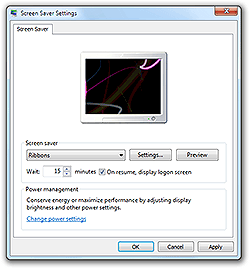
The Screen Saver Settings panel, so named since Windows Vista, is the control center for screensavers under Windows. It allows you to browse, configure and preview all the screensavers currently installed on your computer. Earlier versions of Windows, such as XP and 2000, provided a Screen Saver tab from within the Display Properties panel.
How do I get there?
How you access the Screen Saver Settings panel depends on your version of the Windows operating system. Not sure which version you have? See this help article.
- Where are the screensavers on Windows 10?
- Where are the screensavers on Windows 8?
- Where are the screensavers on Windows 7?
- Where are the screensavers on Windows Vista?
- Where are the screensavers on Windows XP?
What can I do here?
- Change the current screensaver using the drop-down menu
- Preview and configure a screensaver using the "Settings" and "Preview" buttons
- Change the "Wait" time
- Choose to display a password-protected logon screen after the screensaver exits
- Easily access your power management settings (only on Windows Vista and newer)
- Confirm any changes you've made with the "OK" or "Apply" button
Need help? Have questions?
We're here to help. Post your question or problem on our message board.

